
Use Population Explorer to estimate populations in and around displacement zones for humanitarian response and planning.
Overview
When conflict, disaster, or sudden crisis displaces thousands of people, humanitarian response teams must estimate how many individuals are affected—even when official counts are unavailable. Population Explorer (PopEx) enables humanitarian analysts to estimate populations within known or suspected displacement zones quickly, combining high-resolution datasets like WorldPop and LandScan with boundary overlays or field-drawn polygons.
Displacement zones are often fluid: populations move, camps expand, and administrative boundaries no longer align with reality. PopEx offers a transparent, replicable way to generate baseline estimates that can be refined later with field validation, ensuring decisions are grounded in consistent data. These same workflows benefit the private sector as well, from estimating population risk along flight-path corridors, to identifying optimal locations for new healthcare facilities.
Scenario Example
Imagine an emergency coordination team assessing a new influx near Goma, DRC. Satellite imagery shows several informal clusters forming north of the city. Field teams draw approximate boundaries based on GPS points. Within seconds, PopEx calculates the total population living in and around those polygons—helping responders estimate the number of displaced people and host community members affected.
Step-by-Step: Estimating Population in Displacement Zones
In the PopEx interface, create a new folder named after the affected area (e.g., “North Goma Displacement”).
Use New → Create Item → Custom Polygon to sketch each visible camp or settlement boundary. Alternatively, import shapes from File → Import KML/KMZ if field teams have provided coordinates.
Open the Layers → Settings panel to select your dataset (WorldPop 2024+ or LandScan 2023) and confirm the data year matches your reporting period.
Open each polygon’s summary panel to review Population Total, Density, and Income metrics. Record these as preliminary displacement estimates.
If you have multiple clusters, group them under one folder and view the aggregated total.
Export the results via Export → Excel for inclusion in situation reports or inter-agency updates.
Interpreting the Results
Remember that gridded population datasets reflect pre-crisis populations. In displacement contexts, these serve as baselines—not exact counts. PopEx estimates help identify order-of-magnitude figures: whether 5,000 or 50,000 people are affected. Adjustments should later incorporate field registration, camp enumeration, or satellite-based density updates.
Best Practices
Use the most recent dataset (WorldPop preferred for displacement analysis).
Keep polygons tight to visible boundaries to avoid inflating population counts.
Document all assumptions—date, source imagery, who drew the polygons—for transparency.
Pair PopEx outputs with partner data (UNHCR, IOM, OCHA) when reconciling figures.
Example Applications
Use Case | Goal | PopEx Tool |
|---|---|---|
Rapid crisis assessment | Estimate displaced population | |
Host community impact | Measure residents around camps | |
Cross-border displacement | Quantify populations near borders | Custom Polygon + Export |
Early recovery planning | Assess population return areas | Custom Polygon + Time-series Dataset |
Verification
Compare PopEx estimates with field registration data once available. Where large discrepancies occur, check polygon boundaries and dataset years. For fast-moving crises, treat PopEx numbers as indicative, suitable for initial humanitarian planning but requiring validation as conditions evolve.
Next Steps
Need More Help?
If you run into issues, please contact us.
Explore our latest thinking on franchise territory design, retail site selection, and the population data that powers smarter location decisions.

Jun 26, 2026
The Cornfield Effect
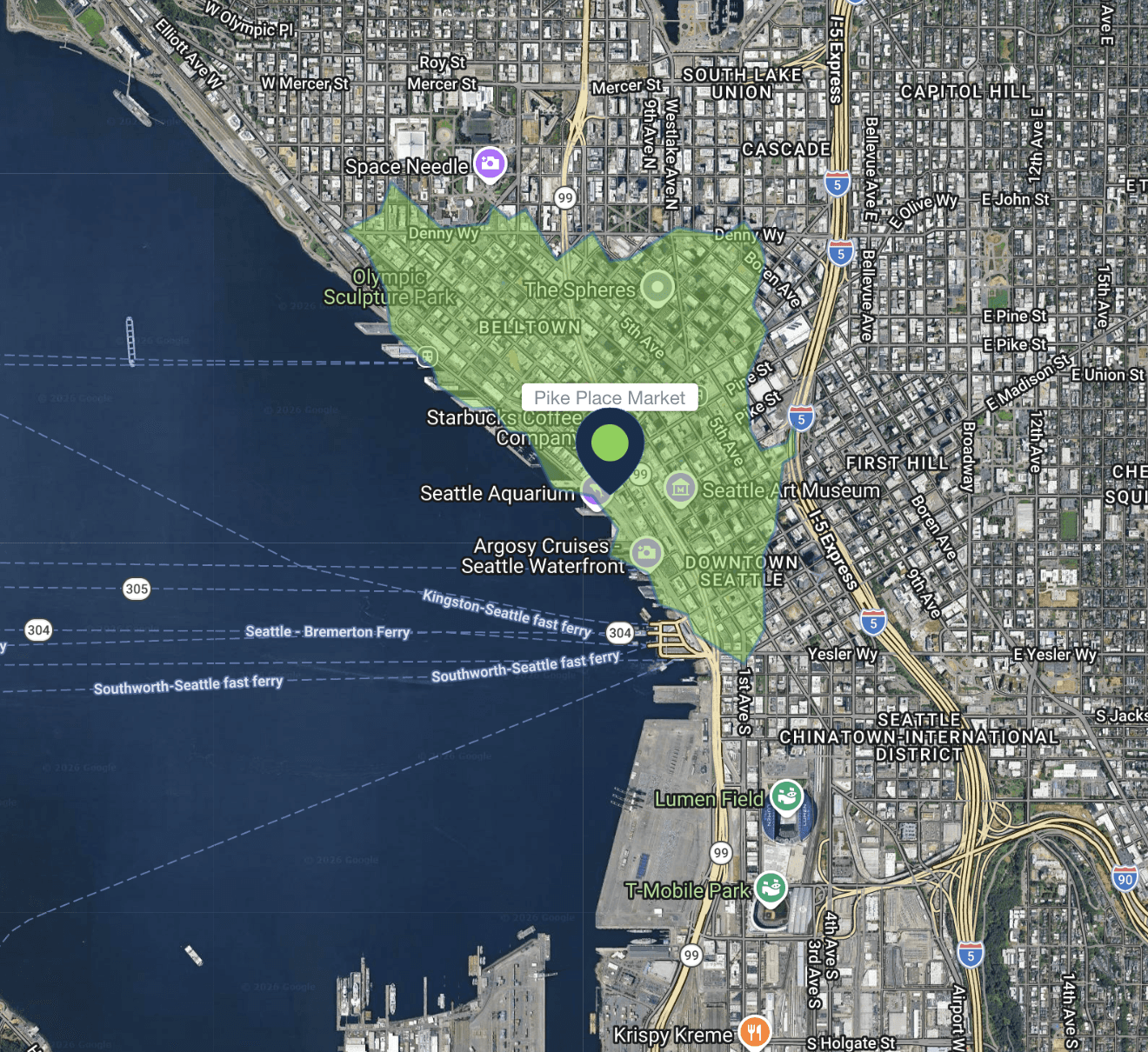
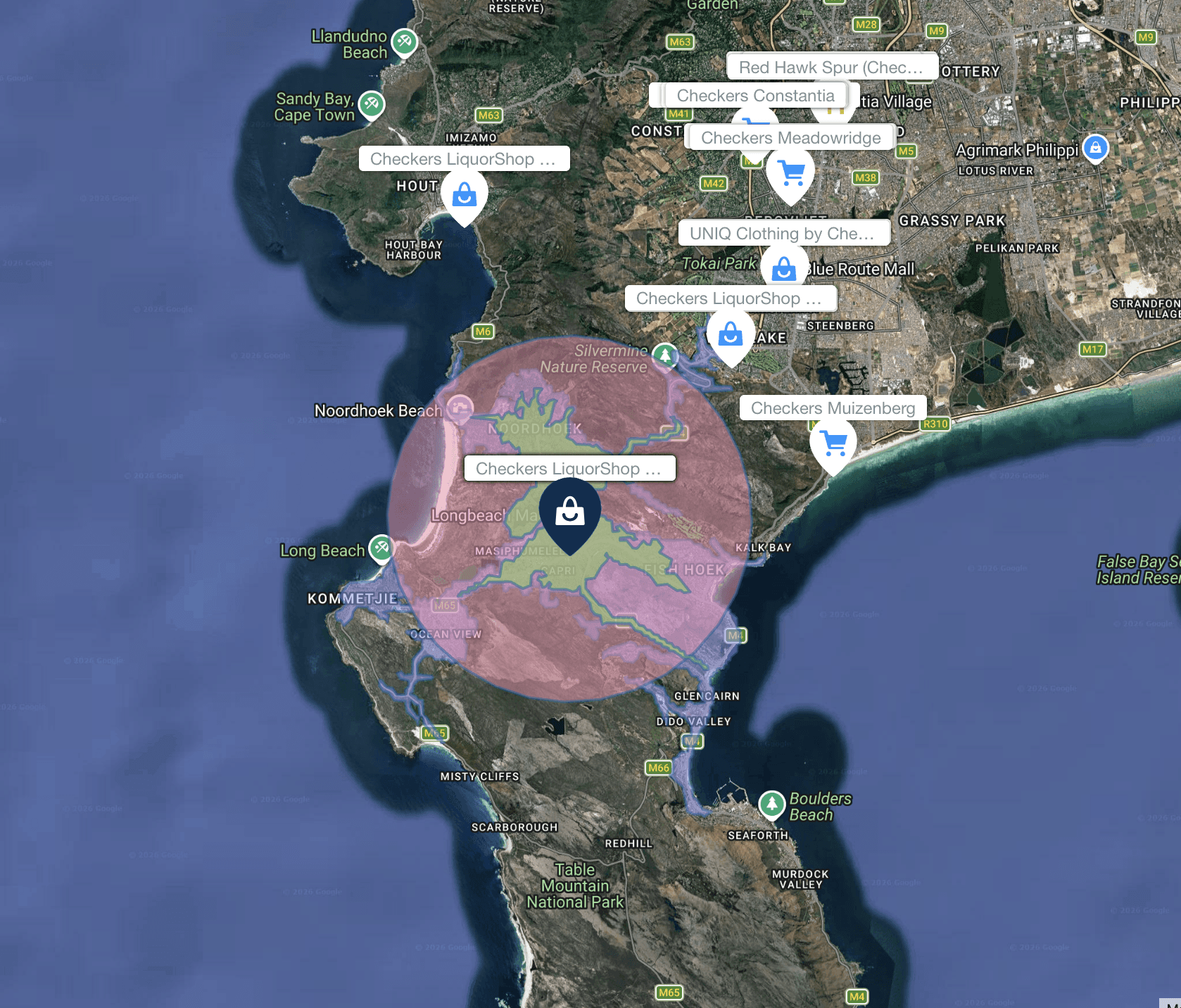
The cornfield effect is a systematic error in demographic analysis that occurs when census data attributes population to uninhabited areas (e.g., farmland, parks, industrial zones) within a census boundary. This distortion leads to overestimates of customer density and misguided location decisions with notable, negative impacts on franchise territory design and retail site selection. Constrained population models, such as WorldPop Global 2, eliminate the cornfield effect by assigning population only to areas where human settlements have been confirmed to exist.
May 22, 2026
You Can Create a Franchise Territory in Less Than 2 Minutes
Franchise territory mapping no longer has to mean expensive consultants, complex GIS software, or weeks of setup. Modern tools let franchisors create, evaluate, and compare protected territories in minutes.
May 22, 2026
At What Point Does a Franchise Need Territory Mapping?
Not every franchise needs rigorous territory mapping on day one. But once territory decisions begin affecting franchise sales, market protection, expansion planning, and long-term network value, the stakes change quickly.