
Balance sales territories in Population Explorer using population, income, and POI data to ensure fair coverage across regions.
Overview
Sales territory maps balanced with demographic data ensure that each rep or region has equitable opportunity and workload. In Population Explorer, you can analyze existing territories against core datasets such as LandScan and WorldPop population estimates, income levels, and Google POI distributions. This allows you to create territories that are both geographically logical and demographically fair.
Traditional methods of balancing rely on sales or revenue data alone, which often fails to capture market potential. By using demographic filters within Population Explorer, you can refine territories based on household income, population density, or proximity to key points of interest. This creates territories that reflect both demand potential and competitive landscape. Balancing franchise territories, maximizing insurance coverage and mapping cell tower coverage all use similar workflows.
Step-by-Step
1. Open Your Territory Folder
Select the folder containing your current territories in the left drawer. Each folder automatically summarizes the combined population and income of its shapes.
2. Compare Demographics
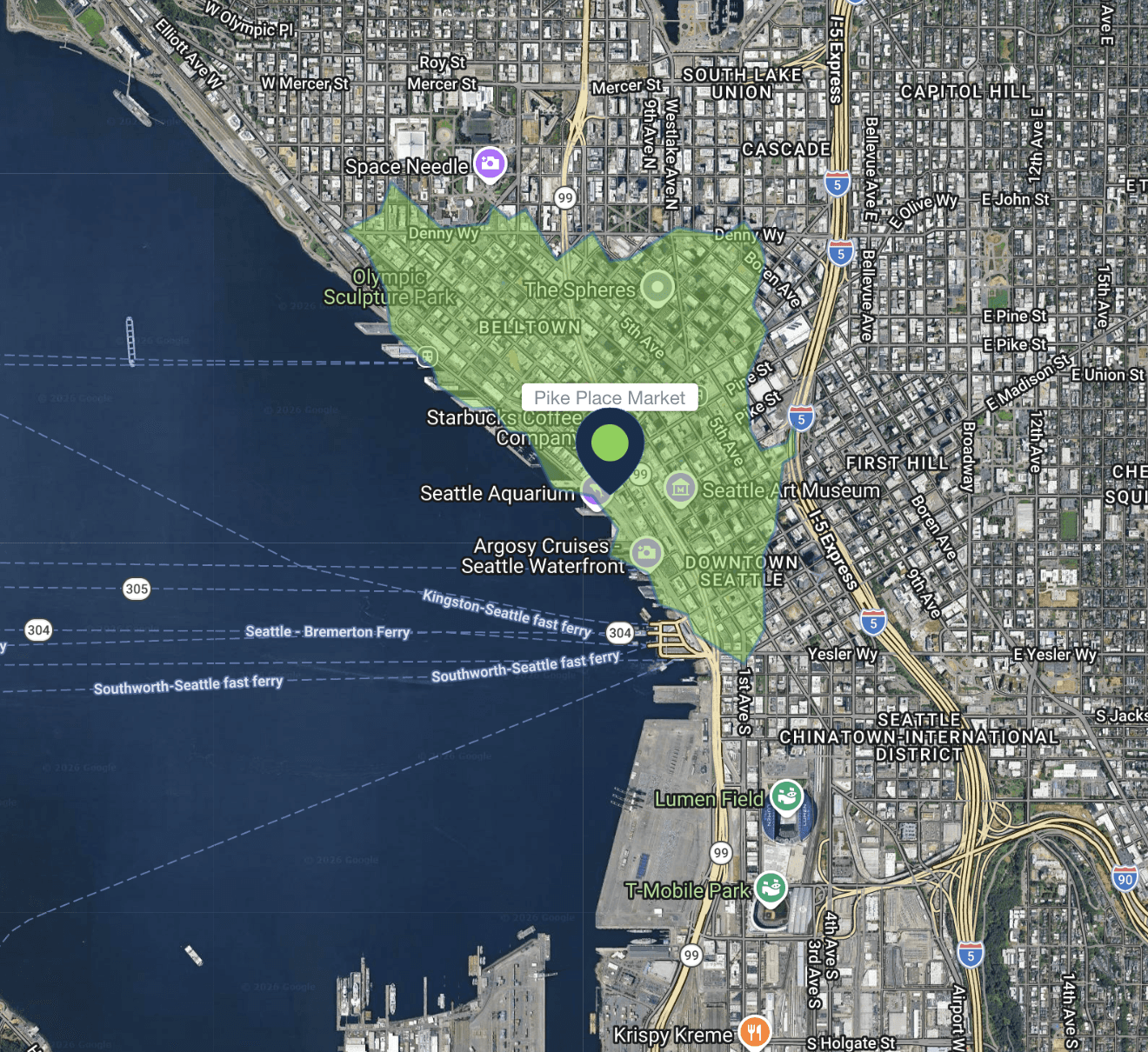
Click through each shape to visualize demographic distributions across your territories.
3. Use Filters to Identify Imbalances
Open the Filter panel and set population or income thresholds to isolate over- or under-performing territories.
4. Adjust Boundaries
Edit or move shapes to redistribute coverage areas. For example, expand low-population territories or reduce high-density ones to achieve parity. Be mindful of classic sales territory mistakes before finalizing boundaries.
5. Verify and Export
Once balanced, click Export and choose Excel (.xlsx) or KML (.kml) to share results or update your CRM.
Verification
Ensure that all folders now reflect comparable total populations and income levels. Review demographic overlays visually to confirm balanced coverage.
Next Steps
Learn how to Use Isochrones for Catchments to assess travel times.
See Exporting Your Data for supported output formats.
Need More Help?
If you run into issues, please contact us.
Explore our latest thinking on franchise territory design, retail site selection, and the population data that powers smarter location decisions.

Jun 26, 2026
The Cornfield Effect
The cornfield effect is a systematic error in demographic analysis that occurs when census data attributes population to uninhabited areas (e.g., farmland, parks, industrial zones) within a census boundary. This distortion leads to overestimates of customer density and misguided location decisions with notable, negative impacts on franchise territory design and retail site selection. Constrained population models, such as WorldPop Global 2, eliminate the cornfield effect by assigning population only to areas where human settlements have been confirmed to exist.
May 22, 2026
You Can Create a Franchise Territory in Less Than 2 Minutes
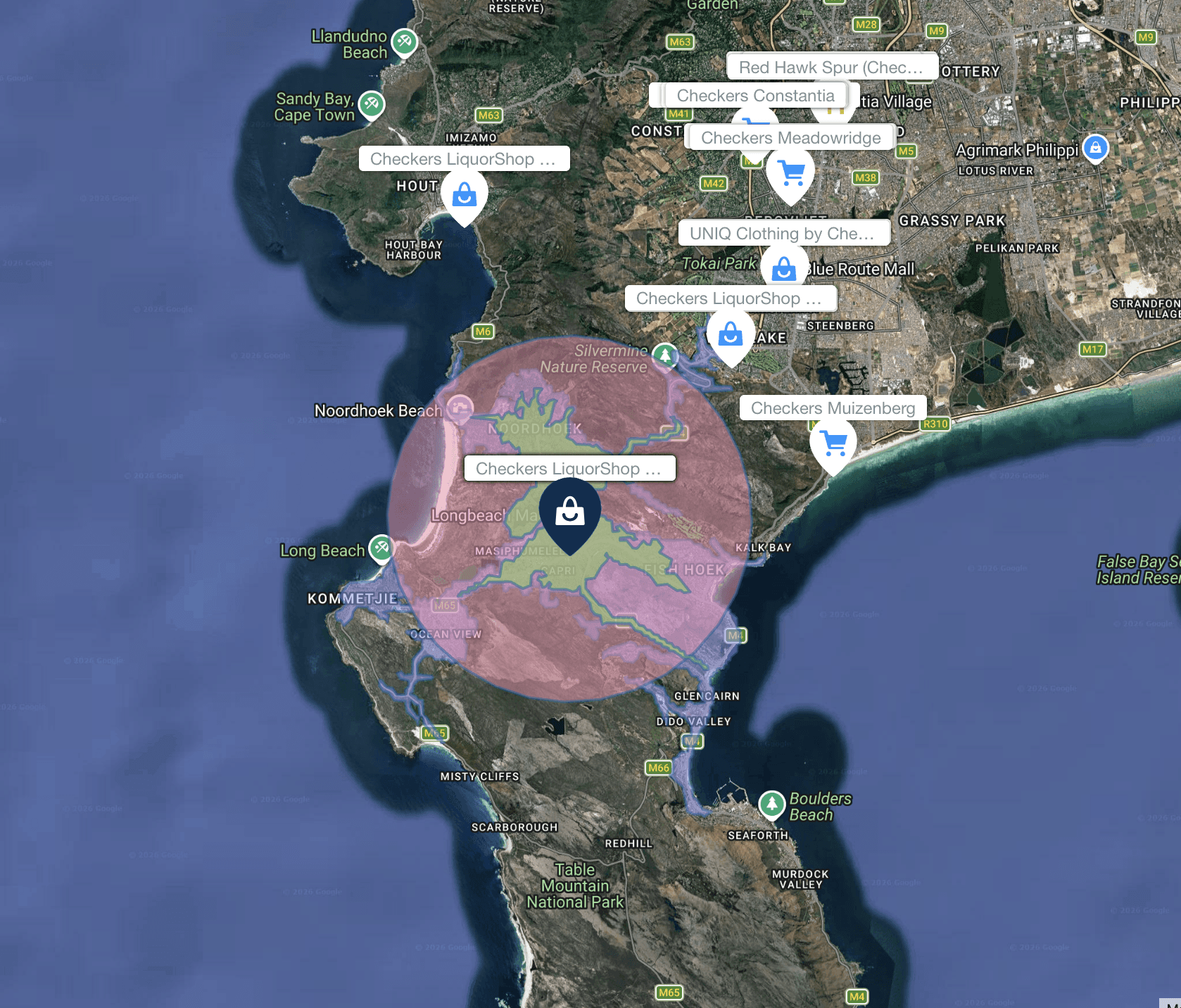
Franchise territory mapping no longer has to mean expensive consultants, complex GIS software, or weeks of setup. Modern tools let franchisors create, evaluate, and compare protected territories in minutes.
May 22, 2026
At What Point Does a Franchise Need Territory Mapping?
Not every franchise needs rigorous territory mapping on day one. But once territory decisions begin affecting franchise sales, market protection, expansion planning, and long-term network value, the stakes change quickly.